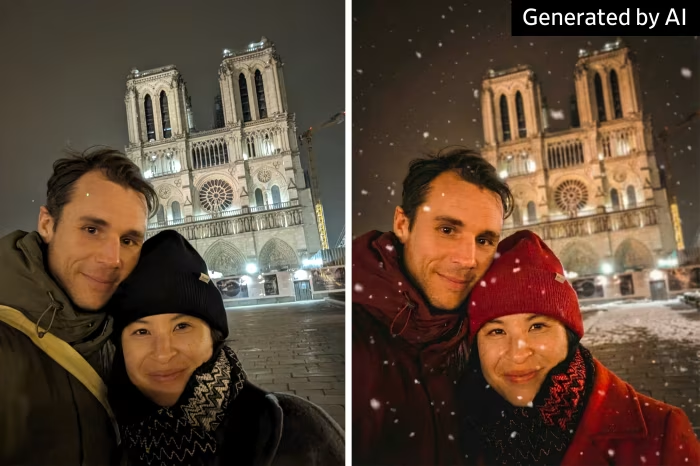
Have you seen those amazing photos turned into cartoons, watercolor paintings or professional portraits? Most of them were made with artificial intelligence, and the best part is that you can do it too, right from your phone.
You don’t need to know how to edit photos or pay for complicated programs. With free apps like ChatGPT and Google Gemini, you just upload a picture, describe what you want and the AI does the rest.
In this guide, you’ll learn step by step how to transform your photos with AI, plus ready-to-use ideas and tips to get beautiful results.
What Can AI Do with Your Photos?
AI tools can take a regular photo and turn it into something completely new. Some of the most popular ideas are:
- Cartoon or animated style: turn yourself or your family into colorful cartoon characters.
- Artistic paintings: transform a photo into a watercolor, oil painting or pencil sketch.
- Professional portraits: create a polished headshot with better lighting and a clean background.
- New backgrounds: place your photo on a beach, in a garden or in a cozy studio.
- Vintage looks: give your pictures a retro, old-film style.
Option 1: Transform Your Photos with ChatGPT
ChatGPT, from OpenAI, can create and edit images directly in the chat. Download the official app here:


Then follow these steps:
- Open the app and sign in to your account.
- Tap the “+” button next to the message box and choose a photo from your gallery.
- Type what you want, for example: “Turn this photo into a watercolor painting”.
- Send the message and wait a few moments while the image is created.
- Tap the image to open it and save it to your phone.
Option 2: Transform Your Photos with Google Gemini
Google Gemini is Google’s AI assistant, and it can also edit and transform your pictures. Download the official app here:
Here’s how to use it:
- Open the Gemini app and sign in with your Google account.
- Tap the “+” or image icon in the message box and select your photo.
- Describe the change you want, for example: “Change the background to a sunny beach”.
- Send it and wait for the new image to appear.
- Open the result and tap the download icon to save it.
💡 Tip: both apps have free plans, but the number of images you can create per day may be limited. Paid plans usually offer more.
Ready-to-Use Ideas to Try
Not sure what to type? Copy one of these ideas and send it along with your photo:
- “Turn this photo into a colorful cartoon illustration.”
- “Transform this picture into a soft watercolor painting.”
- “Create a professional portrait from this photo with studio lighting and a neutral background.”
- “Make this family photo look like a vintage picture from the 1970s.”
- “Turn this photo into a pencil sketch.”
- “Place me in a flower garden at sunset, keeping my face the same.”
Tips for Better Results
- Use a good photo: clear, well-lit pictures with the face visible work best.
- Be specific: describe the style, colors and background you want.
- Ask for adjustments: if you don’t like the result, just reply with what to change, like “make it brighter” or “keep my hair the same”.
- Try again: each attempt can come out a little different, so it’s worth generating a few versions.
Take Care with Privacy
Before uploading your pictures, keep a few things in mind:
- Only use photos of other people with their permission.
- Think twice before sharing photos of your children online.
- Avoid images that show personal documents, your address or other private information.
- Check each app’s privacy settings to understand how your photos are used.
Frequently Asked Questions
Is it free to transform photos with AI?
Yes. ChatGPT and Google Gemini both offer free plans that let you edit photos, although there may be a daily limit on how many images you can create.
Will the AI keep my face exactly the same?
Not always. The AI may change some details. If that happens, ask it to keep your face and features unchanged and try again.
Can I use these images on social media?
Yes, for personal use you can share them with friends and family. Just remember to respect the privacy of anyone who appears in the photo.
Final Thoughts
Transforming your photos with AI is simple, fun and free to start. With ChatGPT or Google Gemini, you just upload a picture, describe your idea and watch it come to life.
Try different styles, save your favorites and have fun creating unique memories, always taking care of your privacy and the privacy of the people you love.