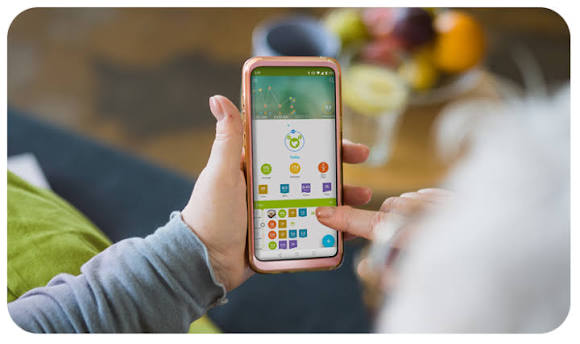
Keeping track of blood sugar readings, meals and medication on paper can be tiring and confusing. That’s why so many people with diabetes use mySugr, one of the most popular diabetes logbook apps in the world.
Developed by mySugr GmbH, part of the Roche group, the app brings all your diabetes data together in one place, with clear charts, an estimated HbA1c and easy connection to compatible Accu-Chek glucose meters.
In this complete guide, you’ll learn how to download mySugr, how to set it up and how to use each feature step by step.
What Is mySugr?
mySugr is a digital diabetes logbook. Instead of writing everything in a notebook, you record your data in the app, and it organizes it for you. You can log:
- Blood glucose readings, manually or automatically from a connected meter.
- Meals and carbohydrates.
- Insulin and medication.
- Activity, notes and how you’re feeling.
With this information, the app shows graphs, averages and an estimated HbA1c, helping you and your healthcare team understand your patterns over time.
Free vs. mySugr PRO: What’s the Difference?
The app is free to download, and the free version already covers the essentials. There is also an optional subscription called mySugr PRO with extra tools.
| Feature | Free | PRO |
|---|---|---|
| Log glucose, meals, carbs and medication | ✅ | ✅ |
| Blood sugar graphs | ✅ | ✅ |
| Estimated HbA1c | ✅ | ✅ |
| Connection to compatible Accu-Chek meters | ✅ | ✅ |
| Secure data backup | ✅ | ✅ |
| PDF and Excel reports | — | ✅ |
| Blood glucose reminders | — | ✅ |
| Smart search, challenges and meal photos | — | ✅ |
| Bolus calculator (select countries only) | — | ✅ |
💡 Good to know: the PRO subscription renews automatically unless you cancel it at least 24 hours before the end of the current period. You can manage it in your App Store or Google Play account settings.
How to Download mySugr
On iPhone (App Store)
- Open the App Store.
- Tap Search and type “mySugr”.
- Select mySugr – Diabetes Tracker Log and check that the developer is mySugr GmbH.
- Tap Get and confirm with Face ID, Touch ID or your password.
- When the download finishes, tap Open.
💡 Tip: the app requires a recent version of iOS. If you can’t install it, go to Settings > General > Software Update on your iPhone.
On Android (Google Play)
- Open the Google Play Store.
- Tap the search bar and type “mySugr”.
- Select mySugr – Diabetes Tracker Log and confirm the developer is mySugr GmbH.
- Tap Install.
- Once it’s installed, tap Open.
How to Set Up mySugr for the First Time
When you open the app for the first time, it guides you through a quick setup. Here’s what to expect:
- Create your account: sign up with your email and a password. Your account keeps your data backed up and lets you use it on a new phone.
- Accept the terms: read and accept the terms of use and the privacy policy.
- Enter your diabetes information: the app asks about your diabetes type and therapy, such as insulin, pills or diet only.
- Choose your units: in the U.S., blood glucose is usually measured in mg/dL and carbs in grams.
- Set your target range: enter the glucose range recommended by your doctor. The app uses it to color your readings and charts.
⚠️ Important: always use the target range and therapy settings defined by your healthcare team. If you’re not sure, ask your doctor before entering them.
How to Use mySugr Step by Step
1. Understand the home screen
The personalized home screen shows your latest entries, a summary of your day and your glucose graph. It’s the place to quickly see how you’re doing.
2. Add a new entry
To log something, tap the “+” button. In the entry screen, you can fill in:
- Blood glucose: type the value shown on your meter.
- Carbs: enter how many grams of carbohydrates you ate.
- Insulin or medication: record the type and dose you took.
- Notes and tags: add details like “before breakfast”, “after exercise” or “feeling stressed”.
Save the entry, and it will appear in your logbook and graphs right away.
3. Connect an Accu-Chek glucose meter
If you have a compatible Accu-Chek meter, such as the Accu-Chek Guide or Accu-Chek Instant, your readings can be logged automatically:
- Turn on Bluetooth on your phone.
- In the app, open the connections area (usually found in the More menu).
- Select your meter model and follow the on-screen pairing instructions.
- After pairing, new readings will sync to the app.
💡 Tip: device availability can vary by country. Check the list of supported meters inside the app.
4. Connect Apple Health
On iPhone, you can connect mySugr to Apple Health to bring in data such as steps, activity, weight and blood pressure. This gives a more complete picture of how your lifestyle affects your glucose.
5. Read your graphs and estimated HbA1c
The app turns your entries into clear blood sugar graphs, so you can see when your glucose tends to go up or down. It also shows an estimated HbA1c based on your readings.
Keep in mind that the estimated value is just a reference. The official HbA1c result comes from a lab test ordered by your doctor.
6. Share reports with your doctor
With mySugr PRO, you can export your data as PDF or Excel reports to print or send to your doctor before an appointment. This saves time and makes conversations about your treatment much easier.
7. Set reminders (PRO)
PRO users can set blood glucose reminders, which are helpful if you need to check at specific times, like after meals.
8. Read the user’s manual
To learn about every feature in detail, open the app and go to More > User’s Manual. The company recommends reading it carefully to get familiar with all the functions.
Using mySugr During Pregnancy
If you’ve been diagnosed with gestational diabetes, your doctor may ask you to check your glucose several times a day, usually before and after meals. mySugr can make this routine easier:
- Log each reading with a tag like “fasting” or “1 hour after lunch”.
- Record what you ate to see which foods affect your glucose the most.
- Bring your graphs or reports to every prenatal appointment.
Always follow the targets set by your obstetrician or diabetes care team, as they may be different during pregnancy.
Tips to Get the Most Out of mySugr
- Log right away: record your readings and meals as soon as possible, so you don’t forget details.
- Use tags consistently: they make it easier to compare similar moments, like every morning before breakfast.
- Review your week: take a few minutes every weekend to look at your graphs and notice patterns.
- Keep your app updated: updates bring improvements and new features.
Frequently Asked Questions
Is mySugr free?
Yes. The app is free to download and the basic logbook is free to use. mySugr PRO is an optional subscription with extra features, such as PDF reports and reminders.
Does mySugr measure my glucose?
No. mySugr doesn’t measure glucose by itself. It records the values you enter or that come from a connected glucose meter or sensor.
Which glucose meters work with mySugr?
The app works with compatible Accu-Chek meters, such as the Accu-Chek Guide, Accu-Chek Instant, Aviva Connect and Performa Connect. Availability depends on your country, so check the list inside the app.
Is my data safe?
mySugr offers secure data backup linked to your account. Before using it, read the privacy policy on the official mySugr website to understand how your information is handled.
Final Thoughts
mySugr is a practical and well-rated app that turns your diabetes data into clear, useful information. With a few taps, you can log readings, meals and medication, follow your graphs and share everything with your doctor.
Download it, set it up with the guidance of your healthcare team and make managing your glucose a little easier every day.
This article is for informational purposes only. mySugr supports diabetes management but does not replace regular visits to your doctor or diabetes care team.