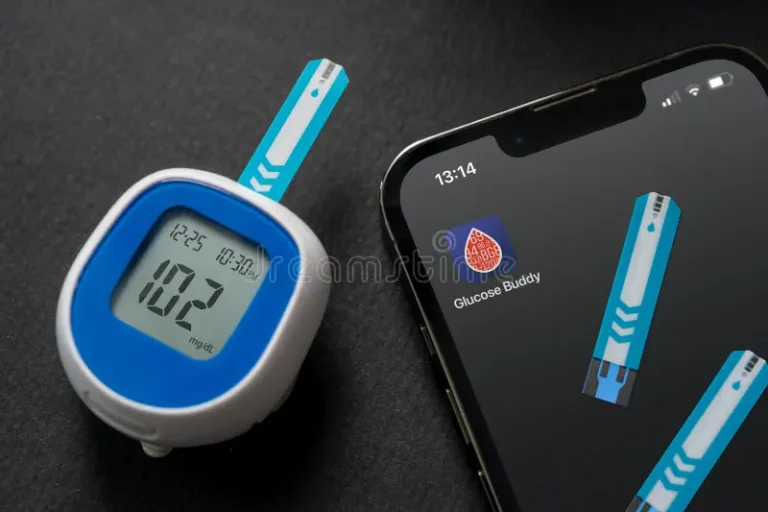
Tracking blood sugar every day is much easier when everything is organized in one place. That’s the idea behind Glucose Buddy, one of the longest-running diabetes apps, trusted by millions of people for more than 15 years.
Developed by Azumio, the app lets you log blood glucose, meals, carbs, medication, insulin and weight, and turns that information into charts and reports you can share with your doctor.
In this complete guide, you’ll learn how to download Glucose Buddy, how to set it up and how to use its main features step by step.


What Is Glucose Buddy?
Glucose Buddy is a diabetes tracker that works like a digital logbook. Instead of writing your numbers in a notebook, you record them in the app and it shows you trends and patterns over days, weeks and months.
With it, you can:
- Track your blood sugar throughout the day.
- Log meals and carbs using a built-in food database.
- Record medication, insulin and other health metrics.
- Monitor weight, activity and A1C trends.
- Add notes and tags to connect your habits to your results.
The app supports both mg/dL (common in the U.S.) and mmol/L.
Free vs. Premium: What’s the Difference?
Glucose Buddy is free to download and the free version covers everyday tracking. The optional Premium subscription adds deeper insights:
| Feature | Free | Premium |
|---|---|---|
| Log blood glucose, meals, carbs and medication | ✅ | ✅ |
| Food database for carb tracking | ✅ | ✅ |
| Weight, notes and tags | ✅ | ✅ |
| Apple Health and Dexcom integration | ✅ | ✅ |
| Automatic A1C calculator | — | ✅ |
| Advanced graphs and custom reports | — | ✅ |
| Entry filters and custom tags | — | ✅ |
| Ad-free experience | — | ✅ |
Premium is available as a monthly or yearly plan and also includes complimentary access to other Azumio apps, such as Fitness Buddy and Calorie Mama.
💡 Good to know: the subscription renews automatically unless you turn it off at least 24 hours before the renewal date. You can manage it in your App Store or Google Play account settings.
How to Download Glucose Buddy
On iPhone (App Store)
- Open the App Store.
- Tap Search and type “Glucose Buddy”.
- Select Glucose Buddy Diabetes Tracker and check that the developer is Azumio Inc.
- Tap Get and confirm with Face ID, Touch ID or your password.
- When the download finishes, tap Open.
On Android (Google Play)
- Open the Google Play Store.
- Tap the search bar and type “Glucose Buddy”.
- Select Glucose Buddy Diabetes Tracker and confirm the developer is Azumio Inc.
- Tap Install.
- Once it’s installed, tap Open.
💡 Tip: the iPhone version requires a recent version of iOS. If you can’t install it, check for updates in Settings > General > Software Update.
How to Set Up Glucose Buddy
The app is designed to work with no complicated setup. When you open it for the first time:
- Create your account so your data is saved and can be restored if you change phones.
- Choose your glucose unit: mg/dL or mmol/L. In the U.S., mg/dL is the most common.
- Enter your basic information, such as your diabetes type and the medication you use.
- Allow Apple Health access (on iPhone) if you want to bring in steps and activity data.
⚠️ Important: use the glucose targets recommended by your doctor. The app helps you track, but your healthcare team defines your goals.
How to Use Glucose Buddy Step by Step
1. Log your blood sugar
Tap the button to add a new entry and type the value from your glucose meter. You can log blood glucose, meals and medication in a single entry, which saves time.
2. Record meals and carbs
Use the food database to find what you ate and see the carb count. Over time, you’ll understand which meals cause blood sugar spikes and which keep your levels steadier.
The app also offers Meal IQ insights, which help you make better food choices based on your data.
3. Track medication and insulin
Record the type and dose of insulin or medication you take. This helps you and your doctor see how your treatment affects your glucose throughout the day.
4. Add notes and tags
Use notes and tags like “before breakfast”, “after walking” or “stressful day”. They make it easier to connect your habits to your results.
5. Connect Dexcom or Apple Health
If you use a Dexcom continuous glucose monitor, you can connect it to bring your readings into the app. On iPhone, Apple Health integration adds activity data, so you can see how exercise affects your glucose.
In the U.S., the app also offers integration with the AgaMatrix Jazz Wireless 2 glucose meter.
6. Check your trends and A1C
View daily, weekly and monthly summaries to see how your glucose, carbs, insulin and activity change over time. With Premium, the app calculates an estimated A1C automatically and shows advanced graphs.
Remember that the official A1C result comes from a lab test ordered by your doctor.
7. Export reports for your doctor
Export your data as a PDF or CSV file and share your glucose logs and A1C trends with your doctor. Premium users can also customize their reports.
8. Follow the 12-week plan
Glucose Buddy includes a 12-week plan designed to help you better manage your diabetes, understand what affects your blood sugar and build healthier habits step by step.
Using Glucose Buddy During Pregnancy
If you have gestational diabetes, your doctor may ask you to check your glucose several times a day. Glucose Buddy can help you:
- Log fasting and after-meal readings with clear tags.
- Use the food database to understand how each meal affects your glucose.
- Export reports to bring to every prenatal appointment.
Always follow the targets set by your obstetrician or diabetes care team.
Tips to Get the Most Out of Glucose Buddy
- Be consistent: log your readings at the same times every day to compare results more easily.
- Log meals right away: it’s easier to remember portions and ingredients.
- Review your summaries weekly: look for patterns, like higher readings after certain meals.
- Share with your doctor: send your reports before appointments to make the most of your visit.
Frequently Asked Questions
Is Glucose Buddy free?
Yes. The app is free to download and use for everyday tracking. The optional Premium subscription adds features like the automatic A1C calculator, advanced graphs and an ad-free experience.
Does Glucose Buddy measure my blood sugar?
No. Glucose Buddy doesn’t measure glucose by itself. It records the values you enter or that come from a connected device, such as a Dexcom sensor.
Can I use Glucose Buddy without a CGM?
Yes. You can use any regular glucose meter and type your readings into the app manually.
Is my data private?
Before using the app, read the privacy policy available on the official Glucose Buddy website to understand how your health information is handled.
Final Thoughts
Glucose Buddy is a simple and reliable way to keep your diabetes data organized. With quick logging, a food database, trend charts and easy reports, it helps you understand what affects your blood sugar and share everything with your doctor.
Download the app, set it up with your healthcare team’s guidance and take one more step toward better glucose control.
This article is for informational purposes only. Glucose Buddy is not a medical device and does not replace professional medical advice.