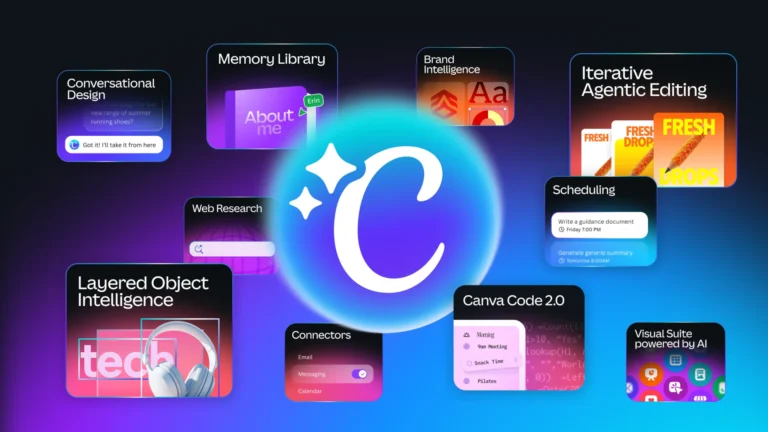
Want to give your photos a fresh new look without spending hours editing? With Canva, you can use artificial intelligence to remove unwanted objects, change backgrounds and even transform parts of a picture just by typing what you want.
Canva is a free design app that works on iPhone, Android and computer. It’s easy to use, even if you’ve never edited a photo before.
In this guide, you’ll learn step by step how to download Canva and use its AI tools to make your photos look amazing.


What Can Canva’s AI Do with Your Photos?
Canva has a set of smart tools that make photo editing quick and simple. These are the most useful ones:
- Magic Edit: select part of the photo and describe what you want to add or replace, like “add flowers” or “change the shirt to blue”.
- Magic Eraser: brush over an object or person you don’t want, and the AI removes it and fills in the space naturally.
- Background Remover: removes the whole background in one tap, so you can place yourself anywhere.
- Filters and adjustments: improve brightness, colors and sharpness in seconds.
💡 Good to know: some AI tools, such as Magic Eraser and Background Remover, are part of Canva Pro. Canva usually offers a free trial, so you can test them before deciding to pay.
How to Download Canva
On iPhone (App Store)
- Open the App Store and search for “Canva”.
- Check that the developer is Canva.
- Tap Get and confirm with Face ID, Touch ID or your password.
- When the download finishes, tap Open.
On Android (Google Play)
- Open the Google Play Store and search for “Canva”.
- Make sure the developer is Canva.
- Tap Install.
- Once it’s installed, tap Open.
The first time you open the app, create your free account using your Google account, Apple account or email.
How to Transform Your Photos Step by Step
1. Upload your photo
Open Canva, tap the “+” button to start a new design and choose the photo you want to edit from your gallery.
2. Remove unwanted objects with Magic Eraser
Tap the photo, open the Edit menu and choose Magic Eraser. Brush over what you want to remove, like a stranger in the background or clutter on a table, and let the AI clean it up.
3. Change or add details with Magic Edit
Still in the Edit menu, select Magic Edit. Brush over the area you want to change and type what you’d like to see there. Canva will show a few options so you can pick your favorite.
4. Swap the background
Use Background Remover to cut out the background, then add a new one from Canva’s library, such as a beach, a garden or a soft color.
5. Save and share
When you’re happy with the result, tap the download or share icon at the top of the screen to save the photo to your phone or post it directly.
💡 Tip: menu names can change a little with app updates. If you don’t see a tool right away, tap the photo and look in the Edit or Effects options.
Creative Ideas to Try
- Clean family photos: remove people or objects that distract from the moment.
- Baby milestone cards: combine your photo with text and stickers to celebrate each month.
- Profile pictures: remove the background and add a soft color for a polished look.
- Seasonal touches: use Magic Edit to add autumn leaves, snow or flowers to your pictures.
- Before and after: place the original and the edited photo side by side to share your transformation.
Tips for Better Results
- Start with a good photo: clear, well-lit images give the AI more to work with.
- Be specific in Magic Edit: describe colors, objects and style, like “a bouquet of pink roses”.
- Zoom in when erasing: brushing carefully gives cleaner results.
- Keep the original: Canva keeps your photo in the uploads, so you can always start over.
Frequently Asked Questions
Is Canva free?
Yes. Canva has a free plan with many tools and templates. Some advanced AI features are part of Canva Pro, which usually comes with a free trial.
Can I use Canva on my computer too?
Yes. You can use Canva in your browser at canva.com, and your designs are saved in your account, so you can switch between phone and computer.
Are my photos private?
Your uploads stay in your account unless you choose to share them. As with any app, check the privacy settings and be careful when sharing photos of your children online.
Final Thoughts
With Canva, transforming your photos with AI is quick, easy and fun. In just a few taps, you can remove distractions, change backgrounds and add creative details that make your pictures stand out.
Download the app, try the tools on your favorite photos and create beautiful memories to keep and share.