
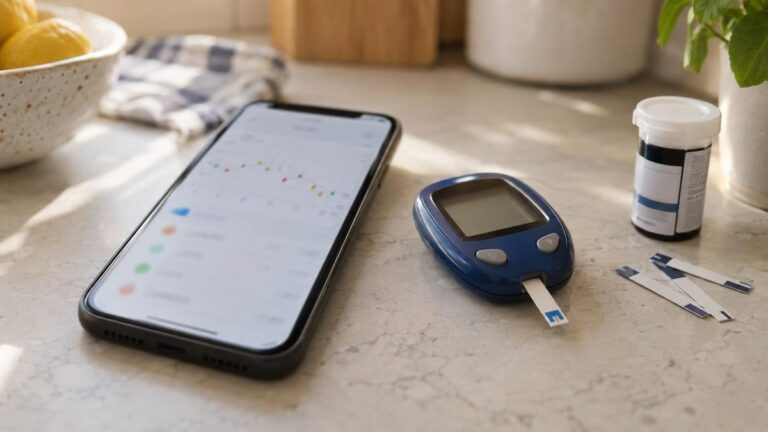
OneTouch Reveal is the free logbook app from LifeScan, the maker of OneTouch meters. Readings from a OneTouch Verio Reflect or Verio Flex arrive in the app by Bluetooth, get tagged by meal and time, and turn into the color-coded patterns the app is known for. This guide walks through installing it, pairing the meter, reading the screens and sending reports to your care team.
This article is general information, not medical advice. Talk to your care team before changing any treatment.
- Installing the app on iPhone and Android
- Pairing a Verio Reflect or Verio Flex meter
- Reading patterns, averages and Mentor messages
- Sharing reports and connecting Apple Health
What OneTouch Reveal Is
The app is a companion to OneTouch Bluetooth meters rather than a stand-alone tracker: it does not read glucose itself, and it does the most when a compatible meter sends readings automatically. You can also type readings in by hand, which makes it usable with any meter, but the tags, patterns and messages are built around the automatic sync. There is no paid tier; the app and the web version at onetouchreveal.com are free with a OneTouch account.
How to Download OneTouch Reveal
On iPhone
Open the App Store, search for “OneTouch Reveal” and install the app published by LifeScan. It needs iOS with Bluetooth on; the first launch asks to create a OneTouch account with an email address and a password.
On Android
Open Google Play and search for the same name, or use the link below. Android asks for location permission during pairing because Bluetooth scanning requires it; the app does not track where you are.

Pairing the Meter
- In the app, open the menu, tap My Meters and then Pair a device.
- Turn the meter on and hold the power button until the Bluetooth symbol blinks.
- Select the meter when it appears in the app and type the PIN shown on the meter screen.
- The meter sends its stored readings; from then on every new reading transfers when the meter is within range and switched on.
- Check the date and time on the meter; readings are tagged with the meter’s clock, not the phone’s.
Compatible meters are the OneTouch Verio Reflect, the Verio Flex and the Verio (with Bluetooth). Older OneTouch meters without Bluetooth still work with manual entry.
How to Use OneTouch Reveal Step by Step
1. Set your ranges
In Settings, enter the before-meal and after-meal ranges your clinician gave you. The colors in the app follow these numbers: blue for low, green for in range, red for high. Leaving the defaults makes every chart less useful.
2. Tag each reading
When a reading arrives, tag it as before or after a meal and add a note if something explains it: a late dinner, a walk, a missed dose. Tags are what let the app find patterns.
3. Read the patterns
The Patterns screen groups repeated highs or lows by time of day over the last 14 days, and the Logbook shows the week as a grid. A pattern of highs after breakfast, for example, usually points at the meal, not at the medication.
4. Use the Blood Sugar Mentor messages
With a Verio Reflect, the app and the meter show short messages that react to the reading: an encouragement when values are in range, a suggestion to check again after a high, or a reminder to eat after a low. They are general guidance, not medical instructions.
5. Check averages and the 14, 30 and 90-day views
The Averages screen shows your mean reading per time of day and the share of readings in range, for 14, 30 or 90 days. The 90-day view is the closest thing to your A1C between lab visits; our blood sugar chart explains how the two relate.
6. Share a report
Reports export as PDF from the app or from the web version, by email or directly to a clinic that uses OneTouch Reveal in the office. Set a reminder to send one two days before each appointment.
7. Connect Apple Health or Google Fit
In Settings you can allow the app to write readings to Apple Health, where they sit next to steps, sleep and weight. The link is one-way: Reveal writes, it does not read other apps’ data.
Tips to Get the Most Out of It
- Keep the meter near the phone when you check; readings sync in seconds and tagging is easier right away.
- Add the medication and insulin fields in Settings if you take them, so the log is complete for the clinic.
- Turn on reminders only for the checks your plan asks for; too many alerts get ignored.
- Use the same meter for all checks so the averages are consistent.
Paying Less for OneTouch Strips
OneTouch strips are on the preferred list of many commercial plans, and LifeScan offers a savings program for commercially insured patients through the OneTouch site. Medicare Part B covers strips and lancets as durable medical equipment with a prescription, at 20 percent of the approved amount after the deductible, per Medicare.gov. A health savings account or FSA pays the pharmacy copay with pre-tax money. Manufacturer programs that hand out a free meter change often, so check the manufacturer sites before switching brands.
This section is general information, not financial advice.
Frequently Asked Questions
Is OneTouch Reveal free?
Yes. The app, the web version and the account are free. The cost is in the meter strips, which are covered by most plans.
Does OneTouch Reveal measure my glucose?
No. It displays readings sent from a OneTouch meter or entered by hand. The finger-prick is still the measurement.
Can I use it with a meter from another brand?
Only by typing readings in manually. Automatic sync works with OneTouch Bluetooth meters; mySugr and Glucose Buddy support other brands.
Is my data private?
Data is stored in your OneTouch account under LifeScan’s privacy policy and is shared with a clinic only when you send a report or link the account to the office.
